Installation and Setup
Note
These instructions are for installing Alter Ego using Docker. If you wish not use Docker, please refer to the node installation instructions.
Installation of Alter Ego is rather complicated, but is made significantly easier with Docker. This page will explain the process in detail.
Step 0: System Requirements
Note
The requirements below are for Linux servers. For system requirements for Windows and Mac, refer to their respective Docker Desktop documentation.
| Minimum | Recommended | |
|---|---|---|
| Architecture | x86_64 / ARM64 | x86_64 / ARM64 |
| CPUs | 1 | 2 |
| Memory | 512 MB | 2 GB |
| OS | Linux | Linux |
| Storage | 10 GB HDD | 20 GB SSD |
Although Alter Ego can run on any system that can run Docker, running it on a Linux VPS is recommended, as performance on Windows and Mac are inferior and can be significantly slower. For instance, the Windows version of Docker relies on virtualization, and therefore suffers a large performance penalty. Some good VPS providers include Hetzner, DigitalOcean, and Linode.
Step 1: Download Alter Ego
First, you need to download Alter Ego itself. Go to the Alter Ego GitHub page and download the latest release. Click the releases box and select the newest one (or whichever version you choose).
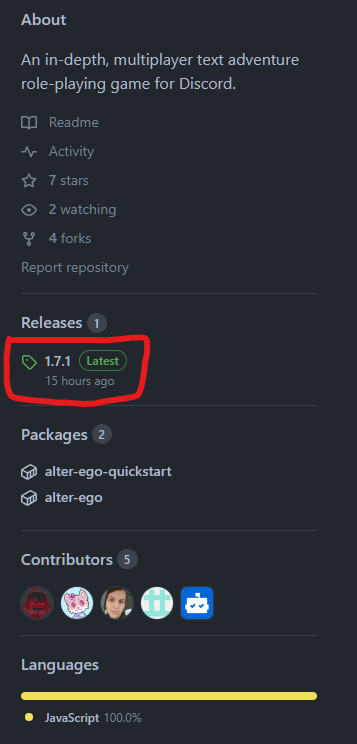
There, you will see something like this.

Windows, Linux, Mac Desktop
From this page, download the archive Alter-Ego-[VERSION].tar.gz. Use your favorite archive utility to open the
archive (e.g. 7zip, GNOME Archive Manager, Keka), and extract the contents into your folder of choice.
Linux Terminal
Use wget to download the archive straight from the terminal. The following is an example (replace VERSION with the
version you want to download).
wget https://github.com/molsnoo/Alter-Ego/releases/download/[VERSION]/Alter-Ego-[VERSION].tar.gz
Unarchive the Alter-Ego folder by running this command (replace VERSION with Alter Ego version).
tar -xzvf Alter-Ego-[VERSION].tar.gz
Step 2: Install Docker
If you already have Docker installed, you can skip this step.
Docker is a container management platform that allows users to run applications on their machines regardless of operating system or dependencies. It has very low performance overhead, and provides isolation that improves security.
Although Alter Ego can be installed bare-metal (i.e. without Docker), this is not recommended.
Linux
To install Docker on your Linux system, refer to the link below:
https://docs.docker.com/engine/install/
Most cloud/VPS providers offer a Docker installation image when you create your VM (e.g. Hetzner).
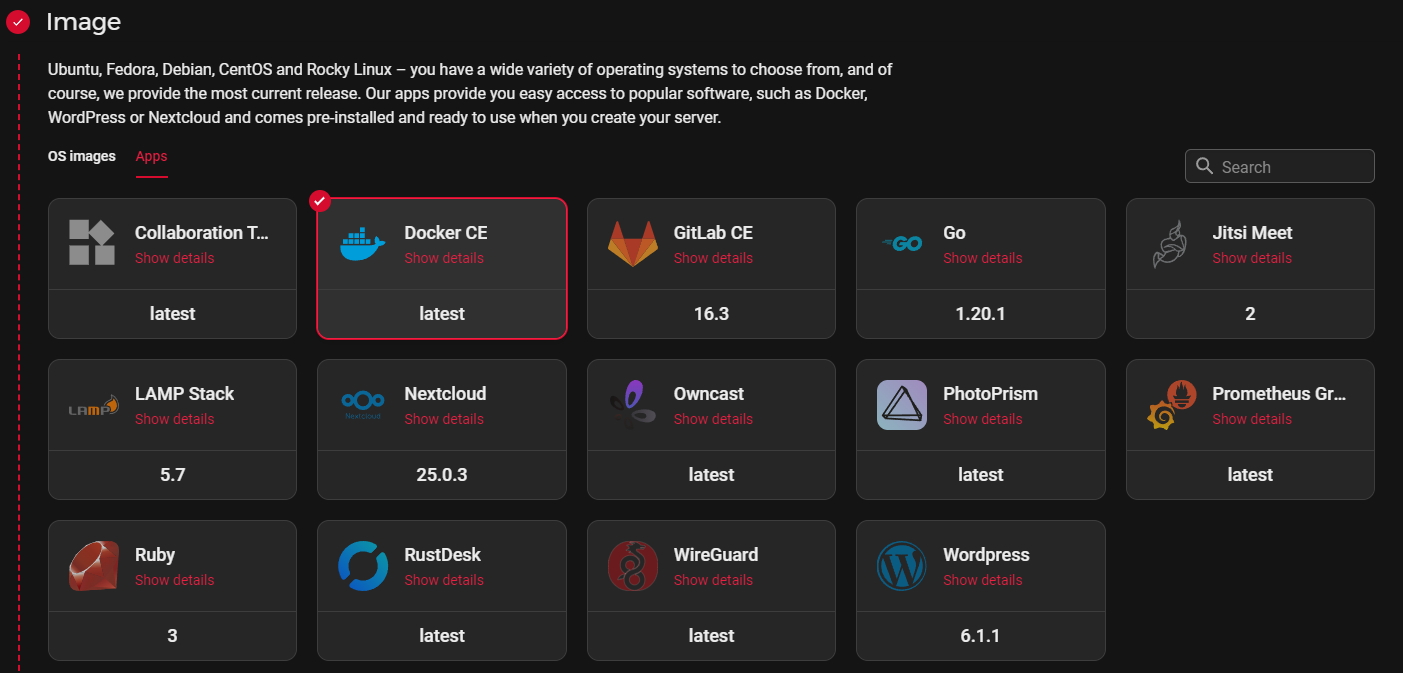
This saves you time and effort from installing docker yourself, and is highly recommended for new users.
Windows
To install Docker on your Windows system, refer to the link below:
https://docs.docker.com/desktop/install/windows-install/
You can also consult this YouTube tutorial for a step-by-step guide.
Mac
To install Docker on your Mac system, refer to the link below:
https://docs.docker.com/desktop/install/mac-install/
You can also consult this YouTube tutorial for a step-by-step guide.
Step 3: Create a Discord bot
Now that you have Alter Ego installed, you’ll need to create a new Discord bot to bind its functionality to. Navigate to https://discordapp.com/developers/applications/, and once you log in to your Discord account, create a new application. You can call it whatever you like. This example will use an application called “Test Bot”. Once you create the application, you’ll be taken to a page that looks like this:
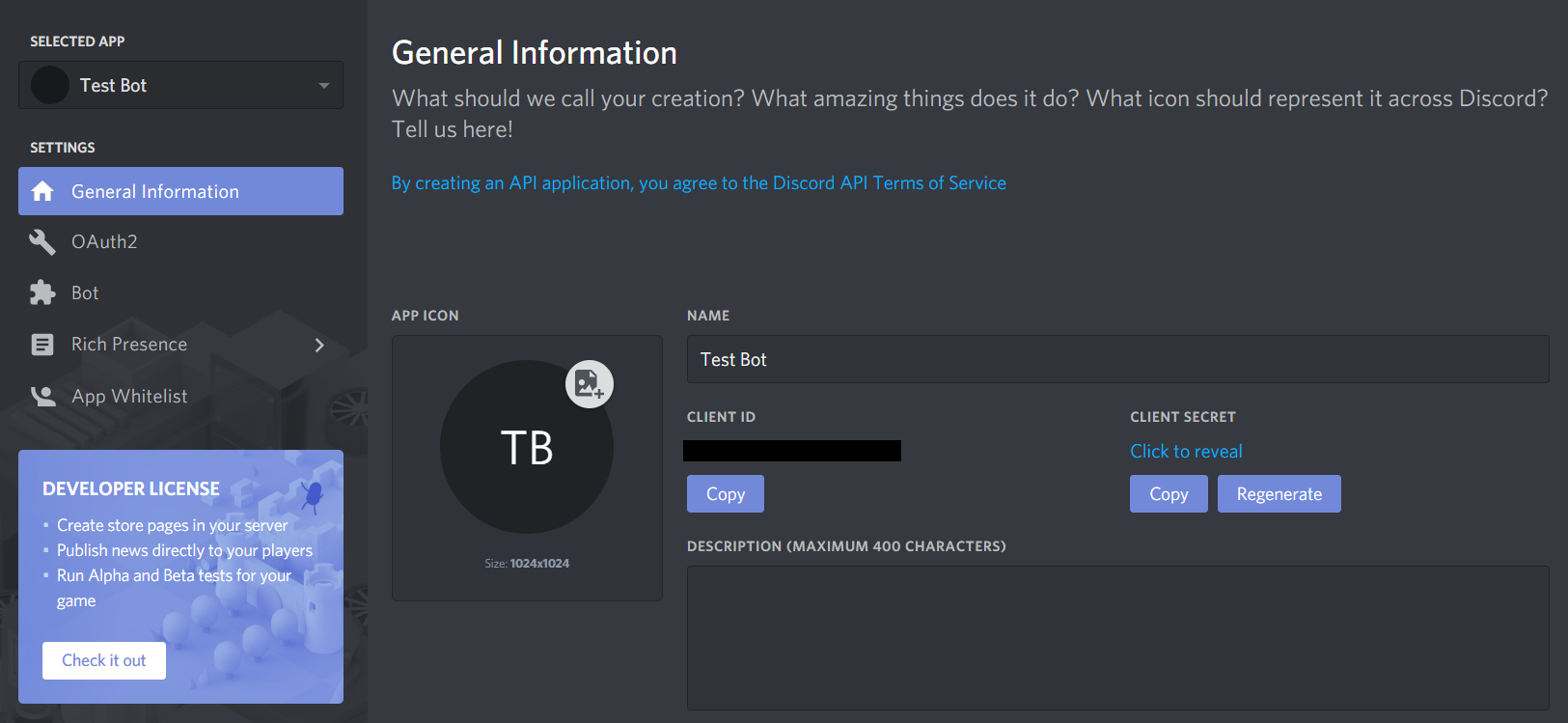
You can ignore this for now. Navigate over to the Bot tab on the left-hand side, then click Add Bot. This will bring you to a page like this:
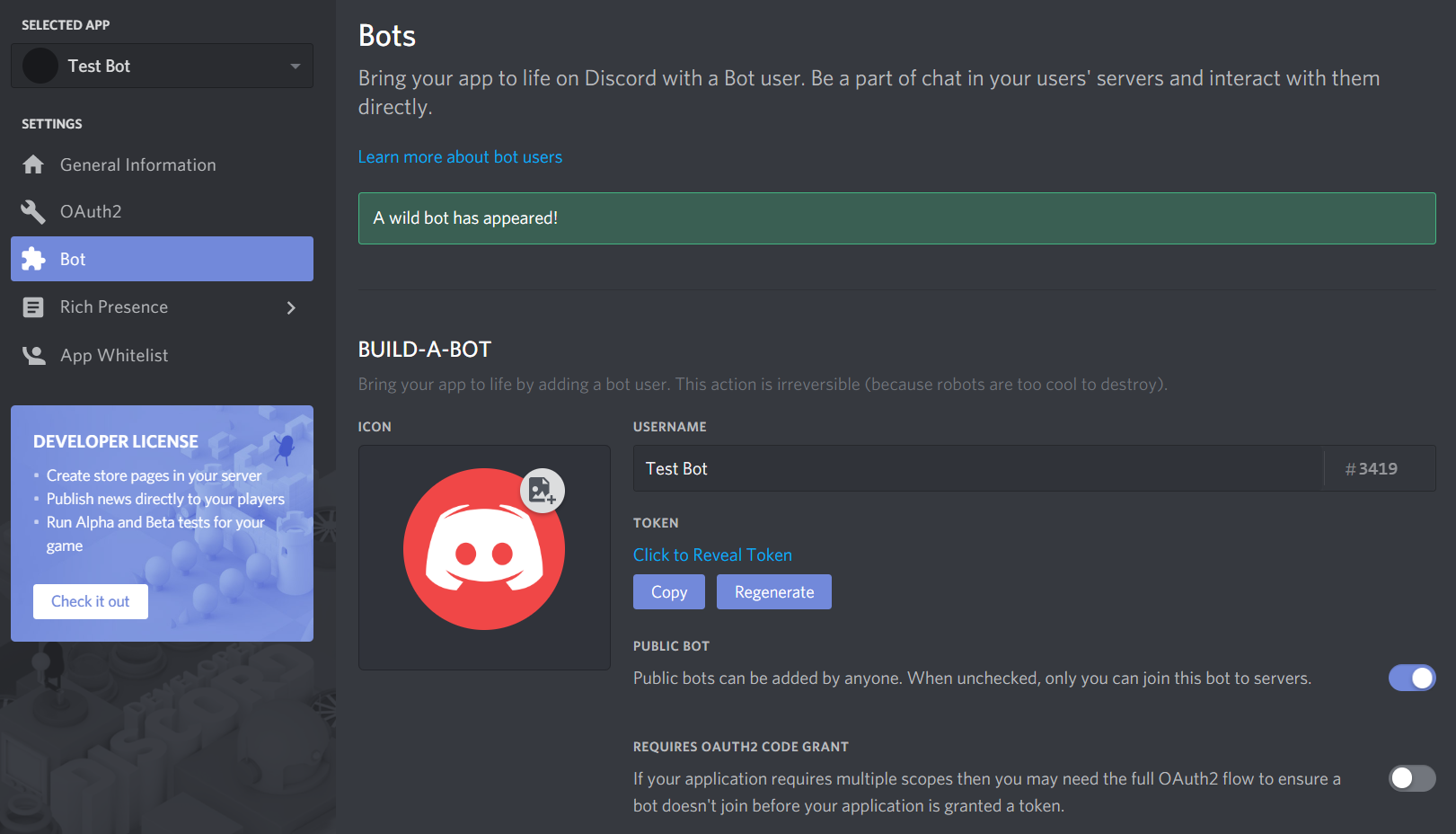
On this page, you can change the bot’s name, set its profile picture, and a few other things. Be sure to uncheck the Public Bot setting! Alter Ego can only be on one server, so you definitely don’t want people inviting it to their own servers!
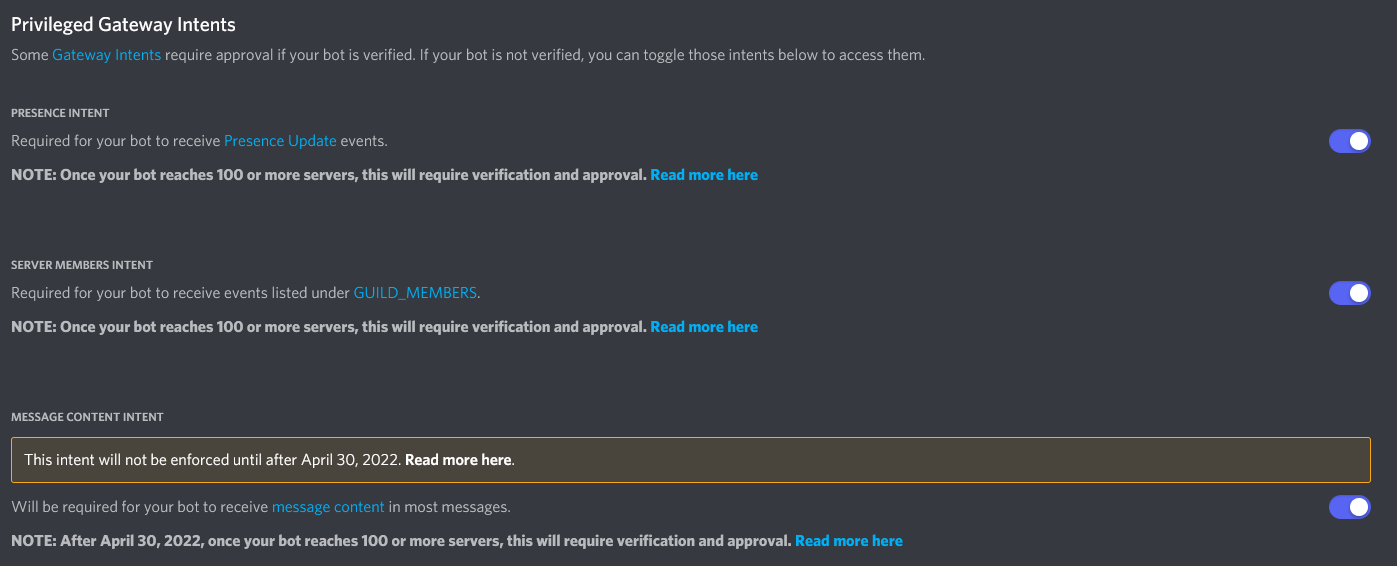
In order for Alter Ego to function properly, you must check the three options under the Privileged Gateway Intents section, specifically the Presence Intent, Server Members Intent, and Message Content Intent. If you’ve done this right, it will look like this:
Step 4: Create a Discord server
Before you can get Alter Ego up and running, you’ll have to create a Discord server. You can call it whatever you like, but once it’s made, you’ll have to set a number of things up.
The easiest way to create a server is using this template, which will add all of the requisite roles and channels for you. If you want to set those up manually, refer to this page.
Enable Developer Mode
You’ll have to enable Developer Mode for your account for the next few steps. To do this, navigate to your User Settings in Discord. Open the Appearance tab and scroll to the bottom. Under Advanced, you’ll see a switch labeled Developer Mode. Turn it on if it’s not already.
Step 5: Invite your bot to the server
Back on the Discord Developer Portal, click on the OAuth2 tab on the left-hand side. Scroll down to this section:
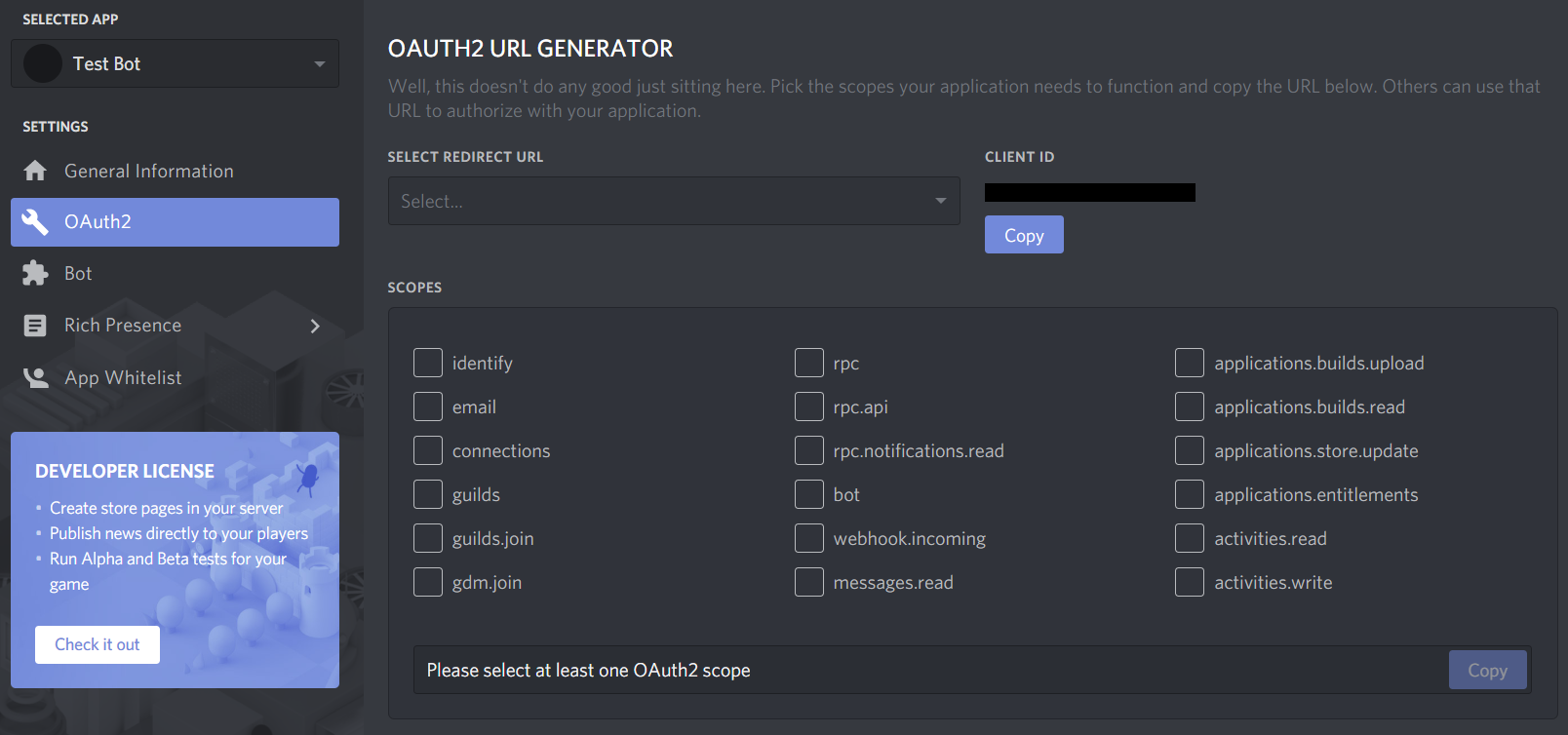
Check bot, then in the box that appears below, check Administrator. You should have something that looks like this:
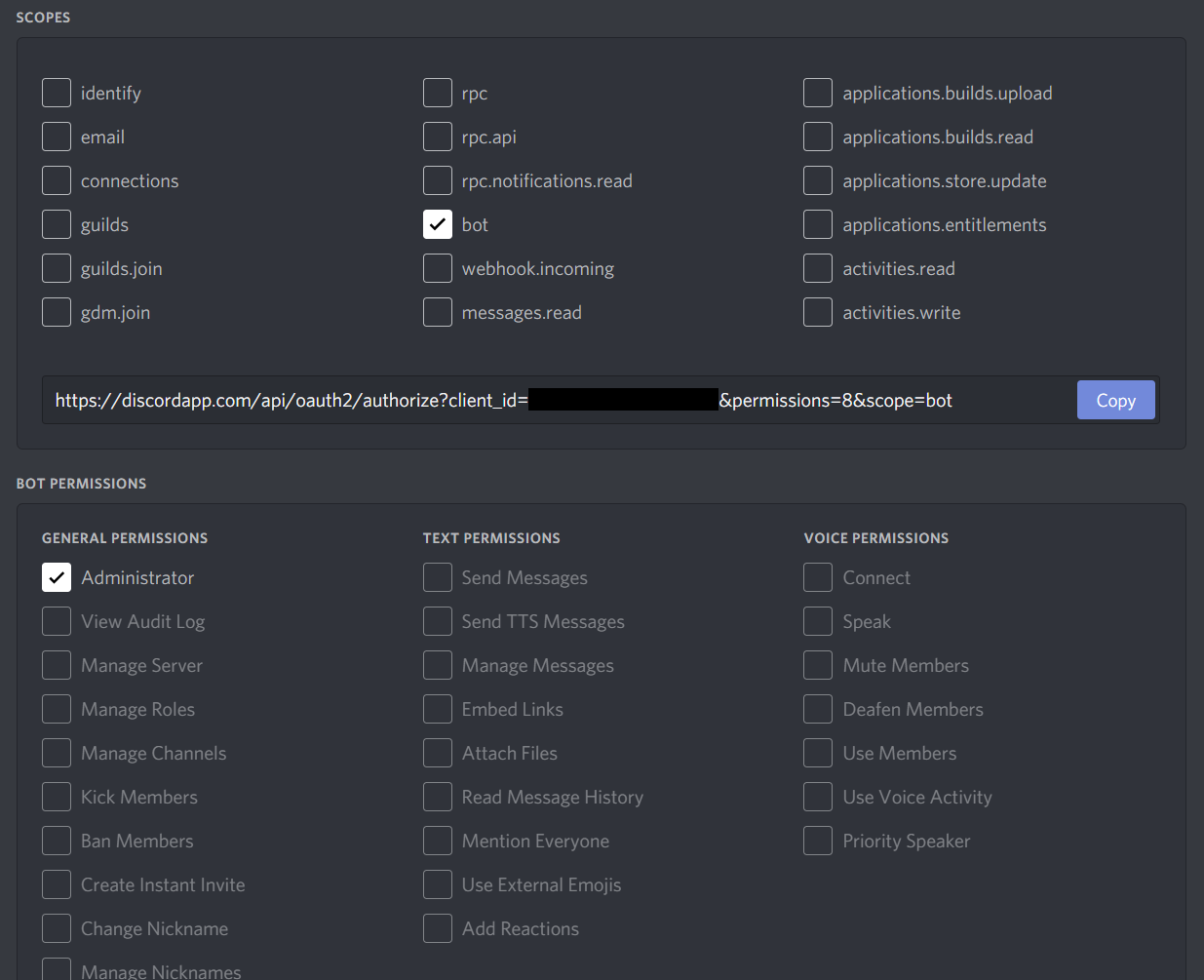
Finally, copy that URL in the Scopes box and open it in your browser. It will take you to a page that looks like this:
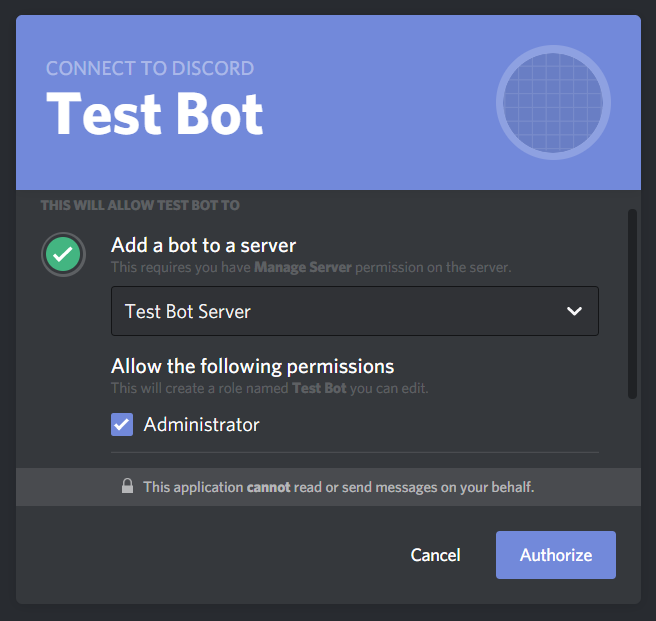
Select the server you just made, make sure Administrator is checked, and click Authorize.
With that, your bot will join your server! However, it doesn’t do anything at the moment. You still need to do a few things.
Step 6: Create a spreadsheet
Next, you will need to create a spreadsheet for Alter Ego to use. For more information, see the article on spreadsheets.
Step 7: Enable the Google Sheets API
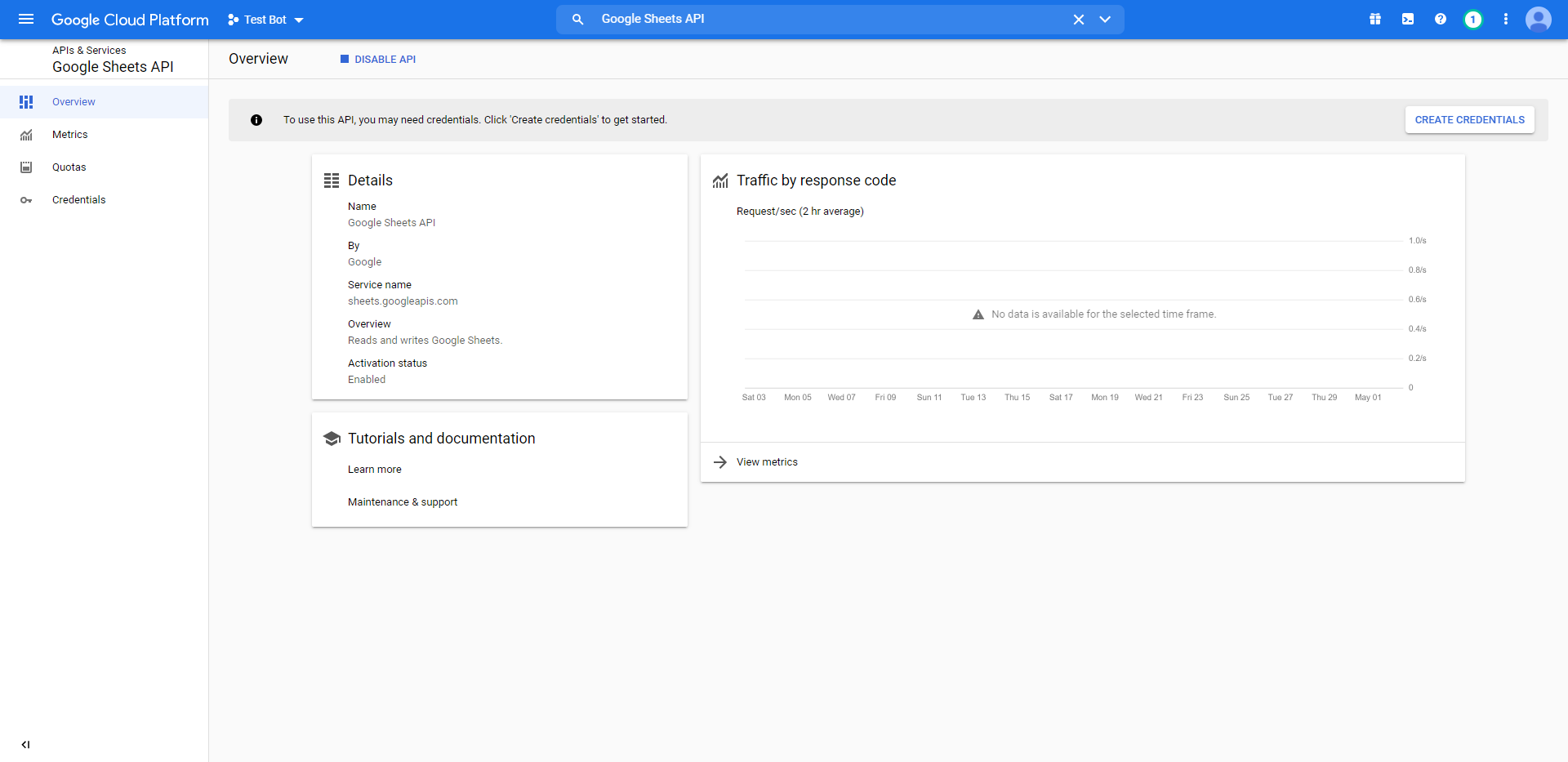
In order for Alter Ego to work properly, you will need to create a new Google APIs project. The easiest way to do that is to navigate to the Google Workspace project creation guide and follow the instructions. For step 5 under the Enable a Google Workspace API section, search for Google Sheets API. Assuming you’ve done this correctly, you should arrive at a page that looks like this:
Step 8: Create a service account
In order to allow Alter Ego to make changes to the spreadsheet, you’ll need to create a service account for it to use. To do that, navigate to the Credentials tab on the left-hand side of the page you were just taken to. Click the Create credentials button and select Service account. You should be brought to a page like this:
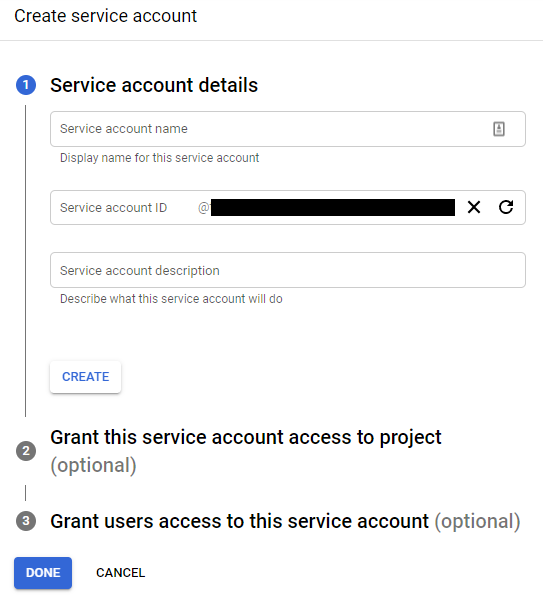
For the name, enter the bot’s name; in this case, it’s Test Bot. For the description, enter whatever you like. Next, grant it the “Owner” role. You can skip step 3.
Once your service account is made, you should see it under the Service Accounts list. Click on the edit button for the service account, and then click on the Keys tab, so that it brings you to a page like this:
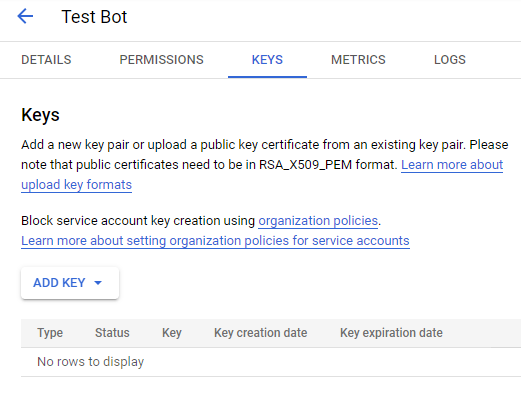
Click the Add Key button and select Create new key. Make sure the key type is JSON, then click Create. This will download a file to your computer. Don’t touch that just yet - there’s one thing to do first. Return to the Service Accounts page.
Step 9: Share the spreadsheet
On the Service Accounts page, you should now see the service account you just created. Copy its email address, then head over to the spreadsheet you made earlier.
On the spreadsheet, press the Share button. Paste the service account’s email address into the dialog box and make sure to give it permission to edit the spreadsheet. You can also do the same with any other moderators you have, if you haven’t done so already. Once you’ve done that, you nearly have everything you need.
Step 10: Edit .env file
The .env file is used to change all settings for Alter Ego. Before running Alter Ego, you must change several values
here.
First, open the Alter-Ego folder that you downloaded. Then, make a copy of .env.example and name it .env (note you
may have to set your file browser to show hidden files). On Linux, use these commands.
cd Alter-Ego
cp .env.example .env
Open the .env file on your computer. You should see something like this.
# This is an example of an environment file for docker compose.
#
# '#' has been used to comment out any variables that do not need
# to be changed from default. Remove '#' to set them if you want
# to use something other than the default value.
#
# Environment variables should be enclosed in single quotes, and
# should follow the data type next to it (e.g. String).
# For instance: DEBUG_MODE='true'

# Time Zone
# See https://en.wikipedia.org/wiki/List_of_tz_database_time_zones
# for a complete list of timezones.
TZ='America/New_York'

# Credentials
DISCORD_TOKEN=                      # String. Token of discord bot
G_PROJECT_ID=                       # String. Google project ID
G_PRIVATE_KEY_ID=                   # String. Google private key ID
G_PRIVATE_KEY=                      # String. Google private key
G_CLIENT_EMAIL=                     # String. Google client email
G_CLIENT_ID=                        # String. Google client id
G_CLIENT_X509_CERT_URL=             # String. Google cert url

# Settings
SPREADSHEET_ID=                     # String. ID of spreadsheet
...
(file continues on)
Setting Time Zone
Before running Alter Ego, you should set the time zone for your container, so that events in the game sync up to your location.
Edit the TZ line so that it matches the time zone where the game occurs in. For instance, if you want to set the
timezone to London, you would change the line to TZ='Europe/London'. For a complete list of timezones, refer to
this Wikipedia article.
Setting Credentials
Navigate to the Discord Developer Portal once again and find the application you created earlier. Open the Bot tab.
Under Token, click Copy. Paste it inside the single quotes after DISCORD_TOKEN= in your .env file. This
token must not be shared with anyone, as it grants access to your bot’s account.
Next, open the file you downloaded after creating the service account in any text editor. The file should look something like this:
{
    "type": "service_account",
    "project_id": "(CONFIDENTIAL)",
    "private_key_id": "(CONFIDENTIAL)",
    "private_key": "(CONFIDENTIAL)",
    "client_email": "(CONFIDENTIAL)",
    "client_id": "(CONFIDENTIAL)",
    "auth_uri": "https://accounts.google.com/o/oauth2/auth",
    "token_uri": "https://oauth2.googleapis.com/token",
    "auth_provider_x509_cert_url": "https://www.googleapis.com/oauth2/v1/certs",
    "client_x509_cert_url": "(CONFIDENTIAL)"
}
In case it wasn’t clear, almost all of the data in this file is confidential. Don’t share it with a single person, and make absolutely sure not to put it online somehow.
Next, add the Google service account credentials to your .env file. Copy each corresponding value in the Google
credentials file into your .env file. For instance, copy project_id into PROJECT_ID=. Replace the double quotes in
the original file with single quotes. Don’t worry about any values that aren’t in the .env file, you won’t need them.
If you did everything right, the credentials section should look like this:
...
# Credentials
DISCORD_TOKEN='(CONFIDENTIAL)'                      # String. Token of discord bot
G_PROJECT_ID='(CONFIDENTIAL)'                       # String. Google project ID
G_PRIVATE_KEY_ID='(CONFIDENTIAL)'                   # String. Google private key ID
G_PRIVATE_KEY='(CONFIDENTIAL)'                      # String. Google private key
G_CLIENT_EMAIL='(CONFIDENTIAL)'                     # String. Google client email
G_CLIENT_ID='(CONFIDENTIAL)'                        # String. Google client id
G_CLIENT_X509_CERT_URL='(CONFIDENTIAL)'             # String. Google cert url
...
Setting Spreadsheet ID
Finally, you must set the spreadsheet ID. A Google Sheets URL contains two IDs. The first is the ID of the entire spreadsheet itself. The second is the ID of the individual sheet currently open in the spreadsheet. You can retrieve the ID of either by copying them from the URL. The format is as follows:
https://docs.google.com/spreadsheets/d/(entire spreadsheet ID)/edit#gid=(individual sheet ID)
Copy the ID for the entire spreadsheet and paste it in single quotes after SPREADSHEET_ID=. For instance.
SPREADSHEET_ID='1234567890'
(Optional) Fill out other settings
If you wish to change other settings other than the ones outlined above, you can edit their entries in the .env file.
Remember to uncomment (i.e. remove the # before the line) for them to go into effect. For more information, see the
article on settings.
Step 11: Run Alter Ego
Finally, you can run Alter Ego. First, make sure that you are in the directory where Alter Ego is installed.
In a terminal, run:
docker compose up -d
If you did everything right, this is what you’ll see:
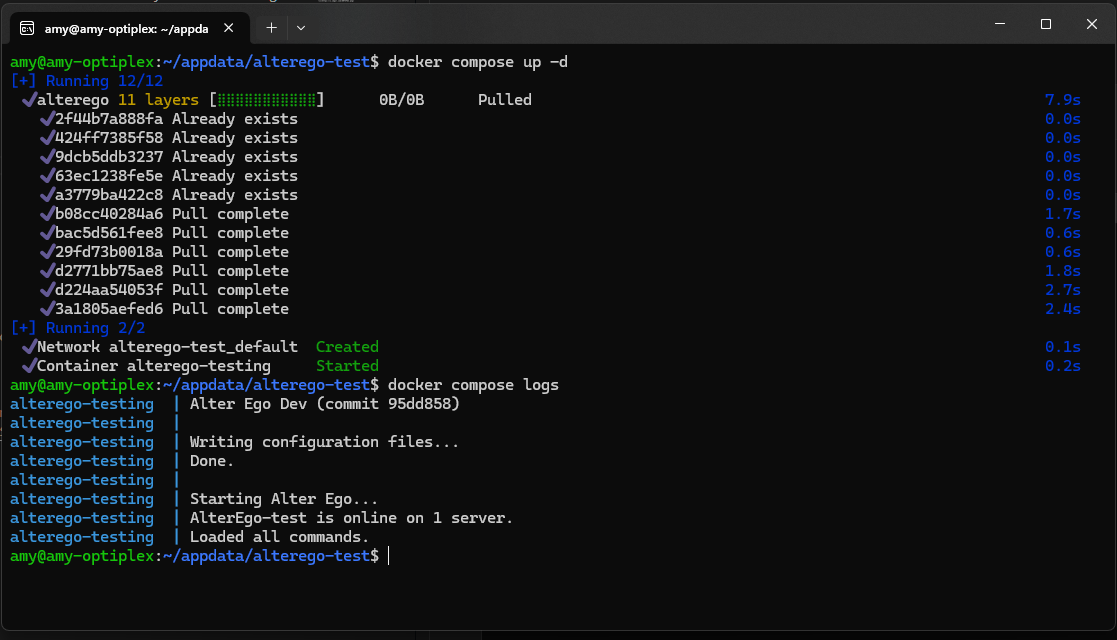
If you run the command docker compose logs, you should see this:
alterego  | Alter Ego (VERSION) (commit (COMMIT))
alterego  |
alterego  | Writing configuration files...
alterego  | Done.
alterego  |
alterego  | Starting Alter Ego...
alterego  | AlterEgo-test is online on 1 server.
alterego  | Loaded all commands.
Congratulations! If everything went well, you can now use Alter Ego to run a game of the Neo World Program. Good luck!
Updating Alter Ego
To update Alter Ego, first take the container down with this command.
docker compose down
Next, open docker-compose.yml. You should see something like this.
version: "3.8"

services:
    alterego:
        image: ghcr.io/molsnoo/alter-ego:1.8.0
        container_name: alterego
        env_file:
            - .env
        volumes:
            - data:/home/node/app/Configs
        restart: unless-stopped

volumes:
    data:
Then, change the image: line so that it corresponds to the new version of Alter Ego. For instance, change 1.8.0 to
1.9.0. The line should now read something like this.
image: ghcr.io/molsnoo/alter-ego:1.9.0
Save the file and quit your text editor.
Next, pull the new update using the following command:
docker compose pull
Finally, simply start the container again and Docker will automatically update Alter Ego for you.
docker compose up -d
Docker Commands
To view the status of your container run:
docker ps
To view the logs of Alter Ego, run while in the same directory as Alter Ego:
docker compose logs
To stop the container, run:
docker compose stop
To start the container after stopping it, run:
docker compose start
To restart the container, run:
docker compose restart
For a full reference to Docker Compose, refer to the official documentation.